Uncategorized

My foray into tweetcoding

I finally broke my Twitter silence and tweeted so I could participate in the tweetcoding competition that Grant Skinner launched. Here’s the code of my amazing entry:

if(!i++) { o=new Loader(); o.load(new URLRequest([“http:”,,”is.gd”,”kUV9″].join(“/”))); } if(o && o.width) { stage.addChild(o); }

And here’s the link to the auto-generated SWF produced by that code.

So for those of you who have been following me on Twitter waiting for me to say something, I hope a dorky joke made of code is everything you expected and more. My entry is kind of cheating I suppose, but it’s all for a good laugh 🙂

The tweetcoding competition is really cool, and people who are taking it seriously (obviously myself not included) are making some really impressive stuff in 140 characters. If you haven’t perused the entries, go to this page and explore. Anything tagged with #tweetcoding is shown in that list, and all the entries submitted are automatically compiled.

And as a tip to others, if you’re going to do an entry, make sure to write it and test it in Flash. I first tried just doing an AS3 project in Flex Builder, but running code in an AS3-only Sprite-based project is quite a bit different than running code on the timeline. It wasn’t until I installed Flash CS4 and tested on the timeline that I got an entry that the tweetcoding compiler would compile correctly (I submitted 3 entries that didn’t compile).

Standard
Flex/Flash/Actionscript

How are you doing global exception handling in Flex/Flash/AS3?

On the project I’m currently working I was recently assigned the following bug:

runtime errors hose application
It seems that when a RTE encountered, the app is pretty much hosed (somewhat unpredictably) until the app is reloaded.

Since non debug players simply swallow the error without any other action, I assume users of the nondebug player who encounter RTEs will report odd behavior with is more of an effect that a cause.

Is there anything we can do to handle this any better?

This is a well known issue with Flash Player. There’s no global exception handling. It’s the most voted on issue in the Flash Player bug database (https://bugs.adobe.com/jira/browse/FP-444). It’s duplicated within the Adobe bug database a few times, and even one of the duplicates is the second most voted on bug in the AS Compiler bug database (https://bugs.adobe.com/jira/browse/ASC-3139). Combine those votes and you’ve got by far the single most wanted feature in Flash Player.

My initial response to this issue was to just say it’s impossible given the current state of Flash Player. But then I got thinking about possible solutions.

What about using JavaScript?
So let’s say I’m resigned to the fact that I cannot have any kind of global exception handling. What if I set up a simple pingback function in my Flash application that was called with JavaScript through ExternalInterface? The only purpose of this function would be to notify the HTML wrapper that the application is responding. Basically the HTML pages says “Yo Flash, you alive?” and Flash says “Yup, still pinging!”

Then if you ever don’t get a ping back you know that something is seriously wrong. Like, application-is-totally-hosed type of seriously wrong. You could then at least display a big ugly crash screen overlay on top of your app and give the user a little description field to file a bug report to tell you what they were doing when the app broke. You wouldn’t be able to save the app from breaking, but you would at least tell the user that the app is broken (which is much better than letting them keep trying to use a broken application) and you might get valuable bug reports to help you find the issue.

So here’s my big question:

In your experience with Flash applications and runtime errors that cause the application to stop functioning correctly, would a simple pingback function of the main application:

  • A. continue to run after the RTE (since the pingback function is so simple, doesn’t do any Flash rendering, or for whatever other reason)
  • B. always stop running after a RTE
  • C. sometimes keep running and sometimes stop running depending on the type of RTE

I have a feeling that the answer is C, which is half useless (although might be better than nothing). But if you know for a fact that you can write some kind of function that will always stop running after ANY runtime error in your application, please let me know (maybe this could include checking something in one of the Flex manager classes? verifying your main application is still laying itself out to the right dimensions? still able to add and remove a simple item from the stage?).

Yes, I am crowdsourcing my bugs.

Standard
Flex/Flash/Actionscript

Analyzing the size of the Flex framework (or why I hate the AdvancedDataGrid)

In my recent Flasher Magazine interview I talked about how much I dislike the “advanced” classes in the Flex SDK that were shipped with Flex 3, namely the AdvancedDataGrid, the OLAPDataGrid, and the grouping and hierarchical collection classes. I also said that I thought that all the list-based controls (DataGrid, Tree, List, etc) were too bloated and slow and that they should all be rewritten from scratch. I realized that that sounds a bit harsh, so I wanted to try to back up those statements with some code metrics.

I’ve put together a spreadsheet that includes each class in the Flex framework, including charting and the advanced data visualization package. This shows the number of lines of code in each file, breaking down the total number of blank lines, comment lines, and actual code lines. I’ve colored the rows to indicate if the class belongs to the advanced data visualization package of Flex 3 (yellow), the charting framework (blue), the AIR SDK (red), or the open source Flex SDK (white).

Here are the top 20 classes, ordered by actual lines of code (not counting comments and whitespace):
screenshot086

To get these numbers, I used a free program called cloc to analyze the source code. Cloc is a perl script that analyzes a bunch of different languages, including ActionScript.

For the full list, check out the spreadsheet. This is for version 3.0.0 of the Flex SDK, it does not include anything released in SDK versions 3.0.2 or 3.2 or any of the new Flex 4 classes.

So just look at that list of top classes. Out of the top five, three of them are the new classes for the AdvancedDataGrid. It’s also worth nothing that AdvancedListBase and AdvancedDataGridBaseEx are not used for anything other than base classes for AdvancedDataGrid. If you look at the inheritance chain for AdvancedDataGrid, it looks like this:

UIComponent
ScrollControlBase
AdvancedListBase (4,553 lines of code, 8,573 total)
AdvancedDataGridBase (1,184 lines of code, 2,084 total)
AdvancedDataGridBaseEx (4,503 lines of code, 7,428 total)
AdvancedDataGrid (5,385 lines of code, 8,432 total)

That means that the entire codebase for the AdvancedDataGrid is 15,605 lines of code (26,517 if you include comments and whitespace). That’s 7% of the entire Flex codebase in those 4 classes. Note that this is not including ScrollControlBase or UIComponent, only the new classes in Flex 3. Also note that AdvancedDataGrid doesn’t inherit from ListBase or DataGrid at all, and ListBase is the second largest class in the entire framework.

So this means that when I run into a bug in the AdvancedDataGrid (which has happened a lot), I’ve got about 30,000 lines of code to wade through to try to debug my problem. No thank you.

The other two out of the top five are ListBase (which is why I said the entirety of the list classes is too big) and UIComponent (which I think is understandable, and I haven’t run into too many problems that have root causes in UIComponent, unlike ListBase which continues to be a big headache for me). Then number 6 on the list is DataGrid (oh, but don’t forget about #12 on the list, DataGridBase). If you group all list-based classes together (meaning the advanced classes and the original list/datagrid/tree classes), you’ve got 9 out of the top 20.

Code quality
This post is only about raw numbers. There’s an entirely different topic of code quality that I can write post after post about when it comes to the quality of the AdvancedDataGrid (and related classes). They use noticeably different coding conventions, they deviate dramatically from the best practices employed by the other components, and they are plagued by performance problems. But that discussion is for another post. For now I just wanted to point out the shear massive volume of code that you’re using when you use these classes.

Am I being too harsh?
Some would argue that the classes have to be big, given that they do so much. After all, it is called the AdvancedDataGrid, it’s doing crazy advanced stuff. I call bullshit on that argument. In my opinion, I just don’t think there’s an excuse for such massive classes. They make developers lives miserable when trying to debug, but I also think it is indicative of a sloppy coding style. The mentality sort of seems to be “throw more code at the problem until you get it to work.” Check out the expandItem method of AdvancedDataGrid. It’s 445 lines long – this single method is longer than 80% of all the other Flex classes in the framework (yes, I checked how many classes are under 445 total lines). That method even includes a spectacular commented out block of code with this comment:

// Dont know why this is done
// So, commenting it and using the rowHeight instead

Awesome. I guess as long as it passes the unit tests go ahead and ship it 😛
Standard
Flex/Flash/Actionscript

What my Eclipse/Flex Builder setup looks like

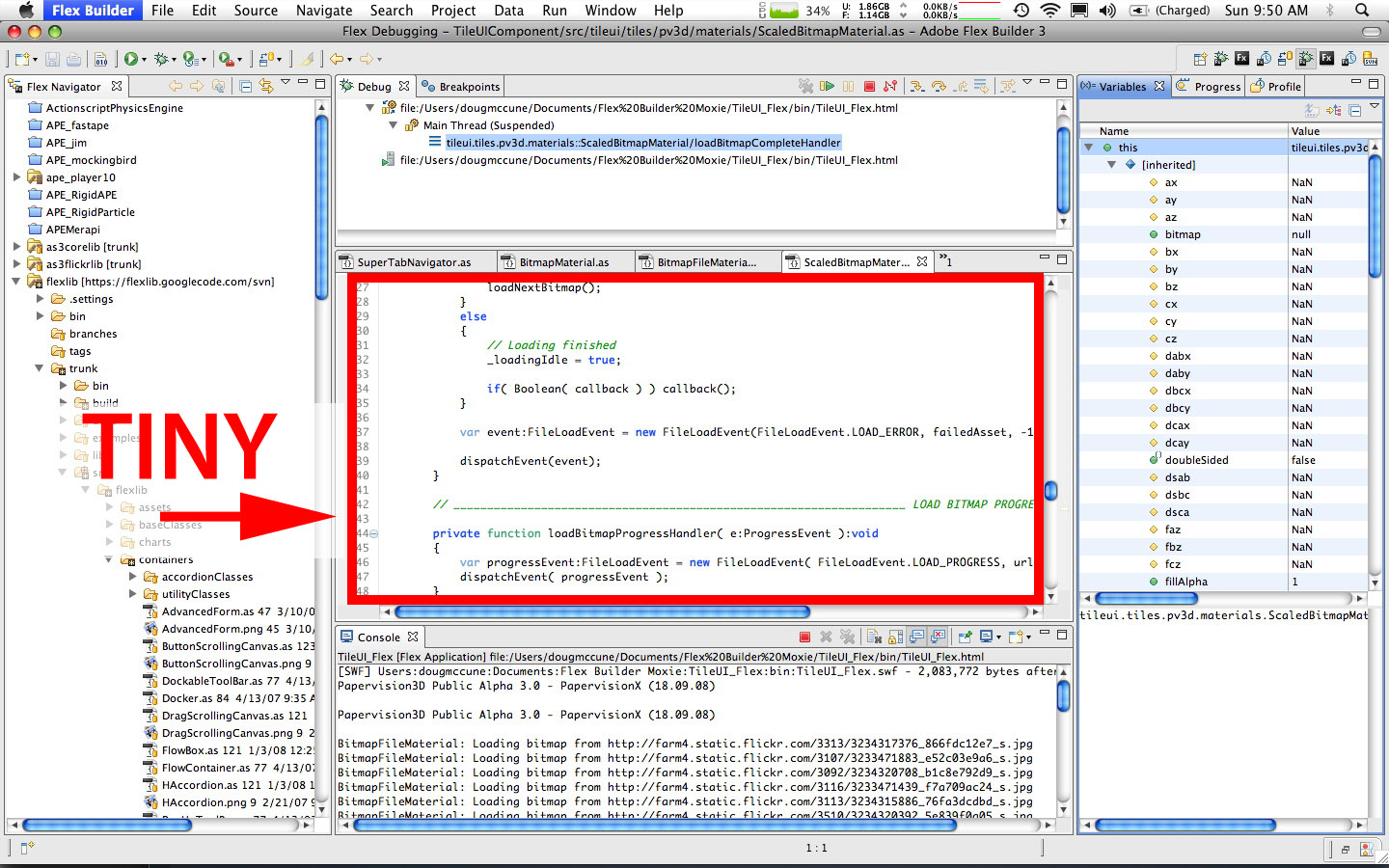
A few months ago I decided that my Eclipse setup was far from optimal. I was using slightly customized versions of the default Flex Development and Debugging perspectives that ship with Flex Builder. I had customized them to suit my personal preferences (things like making the Variables pane take up the full screen height). But the biggest problem I had was the debugging perspective. When you have all the panes you need open on the same screen (code editor, debug panel for stepping through lines, variables pane for inspecting variables, console for reading log statements, navigator for selecting different files) you end up with a tiny area for actually reading the code in the code editor.

The old single-screen perspective
Here’s a screenshot showing how bad my debugging perspective could become:

singlescreen_debugging

I’d usually try to edit code within a maximized code editing window by double clicking the code editor I was working in, then restoring it back to the small size when I was stepping through debugging. And often I’d hide the console view or move it around so I could get more vertical space. But in the end it was always a struggle to have access to all the pieces I needed and still be able to edit code.

The new dual-screen perspective
So I finally decided that having Eclipse within a single monitor just wasn’t going to cut it. For most of my development work, I plug my laptop into an external 22-inch monitor, which gives me a resolution of 1680×1050 on my external monitor and 1440×900 on my laptop monitor. When I was using Eclipse on a single screen I would always put it on the larger screen to maximize space. But now I decided to move all the panels other than the code editor and file navigator to my laptop screen instead (which sits just to the left of my external monitor).

My current setup looks like this (this image is small, but full res images of each screen follow):

side_by_side

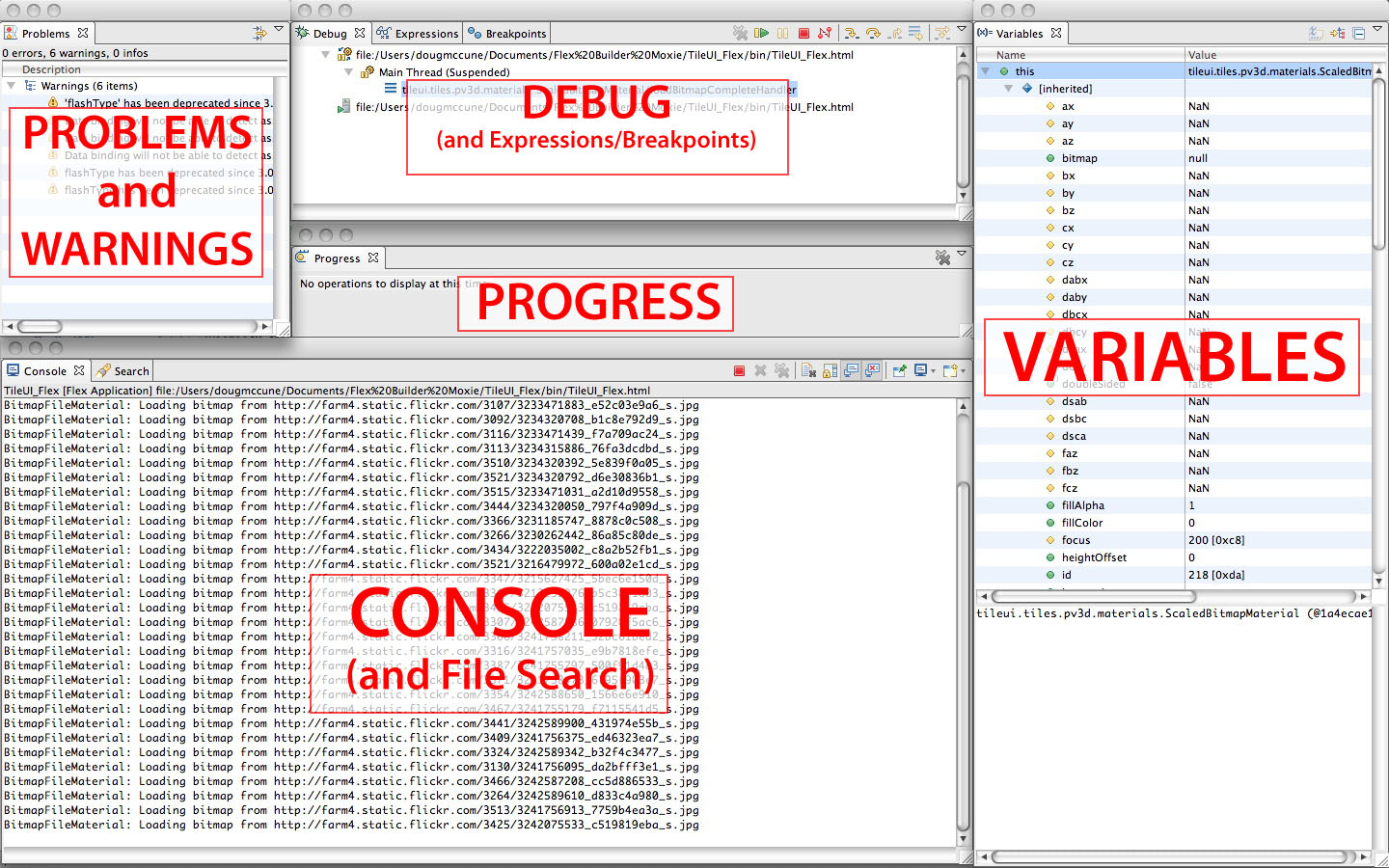
My main external monitor screen is the one on the right and is dedicated to viewing and editing code. I’ve stripped everything else out, and even stripped down the default Eclipse toolbar items to only those that I actually use on a daily basis.

Right screen (external monitor):

dualscreen_right_annotated

Left screen (laptop):

dualscreen_left_annotated

Now I always have a code editor that takes up the maximum amount of space I have. I originally tried moving the File Navigator to the left screen as well, but found that a) it was a bit of a pain visually to have to move my eyes to the left and then to the right after selecting a file, and b) it’s the vertical space that counts the most in the code editor, not maximizing all possible horizontal space.

So when I debug I use the debugger and variable inspector on the left screen to step through line by line, while viewing the actual code on the right.

I’ve setup 4 main perspectives that include a Debug and a Development perspective for both a single-screen setup (when I unplug) and a dual-screen setup. I have all those shown at the same time in the perspective switcher toolbar, so I can easily jump back and forth between them. Also shown in this screenshot are the Team Synchronization and SVN Repo Exploring perspectives and single and dual screen versions of the Flex Profiling perspective. These 8 perspectives are pretty much the only ones I ever use, and are always a single click away.

screenshot085

Drawbacks
The most annoying issue I’ve run into has to do with the popped out Debug window and how Eclipse manages window focus. Usually when debugging it works great, I click the step-over or step-into buttons in the Debug panel and it works just like I want. But sometimes (and I can’t figure out why) Eclipse decides that when I step over a line of code (or maybe it’s only when hitting a breakpoint) that the main code window should get the focus, which means that it takes a click on the Debug panel just to bring it back into focus, then a second click to step over the next line. It doesn’t sound like a big deal, but when you’re used to a single click always making the Debugger do the next step, and then that turns into two clicks, it gets really annoying and frustrating.

The only other drawback is that Eclipse isn’t smart enough to know that I have one perspective for my dual monitor setup and one perspective for when I unplug my laptop from the external monitor. So the default behavior when I unplug is to end up with something horrendous like this:
singlescreen_messedup

That’s easy enough to fix though, by simply right clicking on the perspective icon the toolbar and selecting “Reset”:
screenshot079

It also took a little getting used to to be able to share my attention between both screens and quickly scan my eyes back and forth. Usually I’m used to keeping my laptop screen for certain tasks (email, chat, RSS reading, etc), so I have a bit of a mental block against using both monitors for the same task. But I’ve gotten pretty used to that by now.

What about you?
I’m curious what other Flex developers do in terms of laying out their IDE. I’d love to see screenshots of what other people have figured out. I haven’t experimented with too many different dual-monitor layouts, the one I’m using now was sort of the first one I made on the fly and have stuck with. But if you have a better system then I’d love to see it!

Standard